

Logic Pro Performance
Logic Pro is a professional-grade digital audio workstation (DAW) that has become the go-to choice for Mac users in music production, sound design, mixing, and mastering. While the software is incredibly powerful, many creators face challenges with Logic Pro performance—including latency, CPU overload, and sluggish project handling. Achieving smooth Logic Pro operation on Mac is essential for producing high-quality tracks without interruptions, whether you are a composer, producer, or sound engineer.
Performance depends on several factors: your Mac’s hardware, macOS settings, project size, plugin usage, and workflow management. This comprehensive guide covers system requirements, optimization strategies, workflow tips, plugin management, troubleshooting techniques, and advanced performance enhancements. By following these steps, you can ensure that Logic Pro runs efficiently, reduces latency, handles large projects with ease, and keeps your creative process uninterrupted.
Understanding Logic Pro Efficiency on Mac
Why Low-Latency Recording Matters for Logic Pro Performance
When recording audio, even a few milliseconds of delay can disrupt timing and performance. Poor system efficiency can result in:
- Audio latency during live recording or playback
- Track freezing or CPU overload when handling multiple virtual instruments and effects
- Plugin-induced glitches or crashes
- Slow workflow during complex arrangements
Focusing on Logic Pro efficiency ensures you can monitor, record, and edit in real time, maintaining precision and creativity throughout your production process.
Core Mac Components That Affect Logic Pro Performance Workflow
Several key components influence how smoothly Logic Pro operates on your Mac:
- CPU (Processor): Handles calculations for audio processing, track playback, and plugin execution. Multi-core Apple Silicon (M1/M2) or Intel i7/i9 processors allow for high track counts and complex projects.
- RAM (Memory): Determines how many virtual instruments, samples, and effects can run simultaneously. For large projects, 16–32GB is recommended.
- Storage (SSD vs HDD): SSDs reduce loading times, allow fast sample streaming, and improve project export speeds. HDDs are slower and can create bottlenecks.
- Graphics (GPU): Important for rendering large project windows and visual effects, though less critical than CPU and RAM.
- macOS Version: Ensures compatibility with the latest Logic Pro features and modern plugins, which can affect overall stability and responsiveness.
Recommended Mac Specs for Optimizing Logic Pro
Minimum vs Recommended Mac Requirements
To maintain smooth Logic Pro operation, it is important to know the minimum and recommended specifications:
- Minimum:
- macOS 13 Ventura or later
- 4-core Intel or Apple Silicon processor
- 8GB RAM
- 256GB SSD
- Audio interface or built-in microphone
- Recommended for High-Performance Projects:
- Apple M1, M2, or Intel i7/i9 processor
- 16–32GB RAM
- 512GB–1TB SSD storage
- Dedicated audio interface for low-latency recording
- Dual-monitor setup for workflow efficiency
These specs ensure that Logic Pro can handle high track counts, multiple virtual instruments, and complex plugin chains without system strain.
Apple Silicon vs Intel: Impact on Logic Pro Efficiency
Apple Silicon (M1/M2) Macs offer distinct advantages for music production:
- Higher track and plugin capacity without CPU overload
- Native Apple Silicon plugins reduce the need for Rosetta 2 translation
- Lower energy consumption extends battery life on portable Macs
- Improved thermal management prevents throttling during long sessions
Intel Macs still work well but may require careful management of CPU-heavy projects and legacy plugins.
Optimizing Logic Pro Operation on Mac Logic Pro Performance
Project Management for Smooth DAW Workflow
Efficient project management can drastically improve performance:
- Track Freezing and Bouncing: Temporarily render CPU-intensive tracks to audio to reduce real-time load.
- Sample Library Management: Only load the samples you need to save RAM and reduce disk access.
- Track Stacks: Combine related tracks for easier automation and lower CPU usage.
- Project Organization: Use consistent naming conventions, color-coded tracks, and folder structures to maintain clarity and reduce workflow strain.
Audio Settings for Low-Latency Logic Pro Performance Operation
Proper audio settings are crucial for minimizing latency:
- Buffer Size: Smaller buffers reduce latency during recording but increase CPU load; higher buffers are better for mixing.
- Sample Rate: 44.1–48kHz provides balance between quality and performance; higher rates increase CPU demand.
- Core Audio Settings: Select correct input/output devices and ensure proper driver installation to avoid delays and glitches.
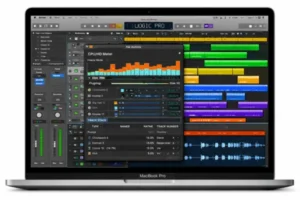
Logic Pro Slow Apple: Causes & Fixes (M1, M2, M3)
Plugin Management for Optimized Logic Pro Efficiency
Plugins can enhance creativity but may also stress your system:
- Use CPU-Friendly Plugins: Opt for lightweight effects and virtual instruments where possible.
- Auxiliary Channels: Route effects through aux channels to reduce processing on individual tracks.
- Update Regularly: Keep plugins up-to-date for compatibility and performance improvements.
- Track Freezing for Heavy Effects: Freeze tracks using complex plugins like convolution reverb or advanced synthesizers.
macOS Optimization for DAW Stability
Maintaining your Mac system enhances Logic Pro efficiency:
- Monitor CPU and RAM usage using Activity Monitor
- Close unnecessary background applications
- Adjust Energy Saver settings for maximum performance
- Clean caches and optimize SSDs for faster sample streaming
- Disable unused startup programs to free system resources
Advanced Techniques for Power Users
External Drives and Audio Interfaces
Large sample libraries and project files can overwhelm internal storage:
- External SSDs improve load times for samples and project files
- Thunderbolt connections provide higher bandwidth than USB-C for multiple libraries
- Separate Drives for samples and projects reduce read/write conflicts
Built-In Logic Pro Tools for Workflow Optimization
Logic Pro offers features to enhance efficiency:
- Low Latency Mode: Reduces monitoring delay during live recording
- Multi-Output Instruments: Efficient routing for complex instruments
- Smart Controls: Centralized plugin adjustments reduce CPU usage
- Track Stacks: Simplifies large sessions and improves overall responsiveness
Troubleshooting Common Mac Issues in Logic Pro
Even optimized setups can experience issues:
- Track Freezing/Bouncing: Helps manage CPU-heavy projects
- Preference Resets: Fixes issues caused by corrupted settings
- Plugin Conflicts: Identify and update/remove incompatible plugins
- System Monitoring: Activity Monitor can identify resource bottlenecks
Long-Term Best Practices for Maintaining Logic Pro Performance Efficiency
Regular Mac Maintenance
- Keep macOS and Logic Pro updated
- Clear caches and free up disk space regularly
- Monitor CPU and RAM during large sessions
- Backup projects and sample libraries to external storage
Workflow Optimization
- Use template projects for common setups
- Organize tracks with color coding and consistent naming
- Utilize keyboard shortcuts and macros to speed up repetitive tasks
- Preload samples and set buffer sizes before recording to prevent bottlenecks
Enhancing Creativity While Maintaining Efficiency
Optimizing Logic Pro workflow allows you to focus on creativity rather than technical limitations:
- Experiment with Track Stacks to layer instruments efficiently
- Use auxiliary channels for reverb, delay, or effects to reduce CPU load
- Implement offline bouncing for CPU-heavy projects to maintain real-time performance
- Monitor CPU and disk usage during live sessions for optimal responsiveness
Blackmagic Fusion Studio 20.2.3
Conclusion
Achieving smooth Logic Pro performance on Mac is essential for professional music production. By understanding system requirements, managing projects efficiently, optimizing audio and plugin settings, and maintaining macOS, you can reduce latency, prevent crashes, and handle large sessions effortlessly. Advanced strategies like using external SSDs, leveraging Logic Pro’s built-in tools, and following long-term maintenance practices further enhance DAW efficiency and overall workflow.
In addition, regularly updating both macOS and Logic Pro ensures compatibility with the latest plugins and improves system stability. Proper CPU and RAM management during mixing and mastering also plays a key role in maintaining consistent performance. Organizing tracks, freezing unused instruments, and using bounce-in-place techniques can further reduce system load.
With the right combination of hardware, settings, and workflow techniques, Logic Pro can operate at peak efficiency, allowing you to focus entirely on producing high-quality music without system limitations.
Homepage: https://worldmacpc.com/
Leave a Reply